Reassigning Asset Organization
The Number/Organization tab lets you reassign the organization of an existing asset while maintaining all the historical information of the asset.
The following is the Number/Organization tab:
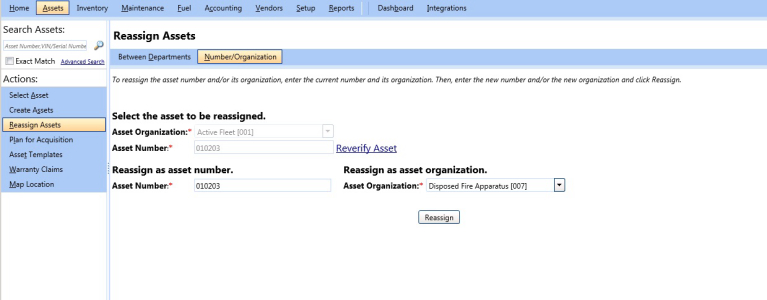
Reassign asset organization
To reassign the asset organization of an asset
- Click the Assets module.
- In the Actions section, click Reassign Assets.
- Click the Number/Organization tab.
- In the Asset Organization list, select the asset organization.
- In the Asset Number box, type the asset number.
- Click Verify Asset to verify if the asset number exists in the selected organization.
- In the Reassign as asset number section, type the asset number in the Asset Number box.
- In the Reassign as asset organization section, select the new asset organization in the Asset Organization list.
- Click Reassign.
The Reassignment Successful message and the new reassignment details are displayed.Note: You can click the Return to Reassign Number/Organization link to return to the Number/Organization tab and reassign another asset.