Searching Assets
The search functionality available on the Assets module helps you to find the assets in FASTER Web. The asset search display records matching the search value anywhere in the Asset Number, VIN (Vehicle Identification Number)/Serial Number, or License Number.
After performing the search operation, you can view or update the details of the asset.
|
Note:
|
The following is the Search Assets page:
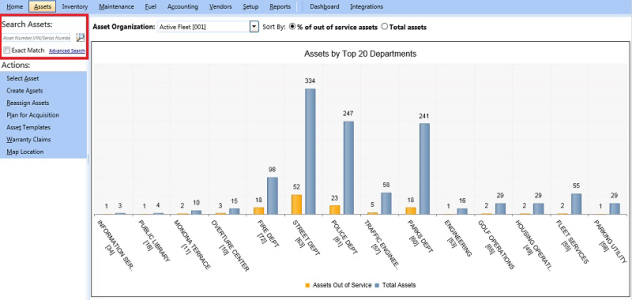
Search assets
To perform an asset search
- In the Search Assets section, type a whole or partial asset number, VIN/serial number, or license number.
- Press Enter or click Search (
 ).
).
Note: To narrow the search results based on multiple search parameters, click the Performing Advanced Search link.
- The search results are displayed in one of the following ways:
- If there is only a single result that matches the search value, the Master tab of that asset opens.
- If there are multiple results that match the search value, the Advanced Search Options - Assets window opens. Narrow the search results using the advanced search options and click the View link next to an asset to display the Master tab.