Configuring Email Settings
The E-mail Settings page lets you configure the settings for sending emails from FASTER Web.
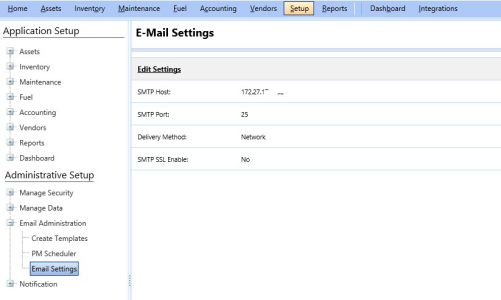
Editing Email Settings
The Edit Email Settings dialog box lets you configure the email settings in FASTER Web.
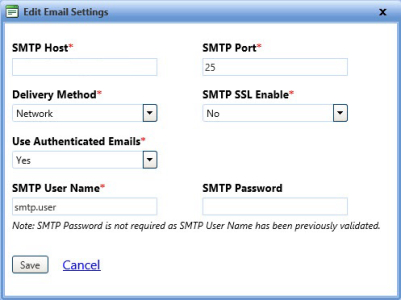
To edit the email configuration settings
- Click the Setup module.
- In the Administrative Setup section, do one of the following:
- Click
 next to the Email Administration option, and then click Email Settings.
 - In the Email Administration section of Administrative Setup, click the Email Settings link.
The Email Settings page opens.
- Click
- Click the Edit Settings link.
The Edit Email Settings dialog box opens. - Specify the following details:
- In the SMTP Host box, type the server that sends an email.
- In the SMTP Port box, type the SMTP port number.
- In the Delivery Method list, select the delivery method of emails.
- In the SMTP SSL Enable list, select Yes, if you want the SSL support to send emails.
- In the Use Authenticated Emails list, select Yes or No:
Note:
- The Use Authenticated Emails field is set to No by default and the fields SMTP User Name, SMTP Password are disabled.
- If the Use Authenticated Emails field is set to Yes, the fields SMTP User Name and SMTP Password are enabled.
- Yes, to send authenticated emails.
If Yes is selected, do the following:- In the SMTP User Name box, type a SMTP user name.
- In the SMTP Password box, type the password for the SMTP user name provided.
Note:
- If the SMTP user name and password are validated in the first attempt, you can leave the password box blank while modifying the other fields. However, if you change user name, you must provide a valid password.
- When using authenticated email, please ensure the Email From field of every email template is the authenticated email address of the SMTP user . You can access email templates at Setup > Administrative Setup > Email Administration > Create Templates.
- No, to send emails without authentication.
- When finished, do one of the following
- Save to save the information and close the dialog box.
- Cancel to disregard any changes and close the dialog box.