Scheduling Preventative Maintenance
The PM Scheduler Settings page displays the calendar and the current settings for sending reminder emails to your customers for the preventative maintenance of their assets. The PM notification dates that you set in the Edit PM Scheduler Settings dialog box are highlighted in the calendar.
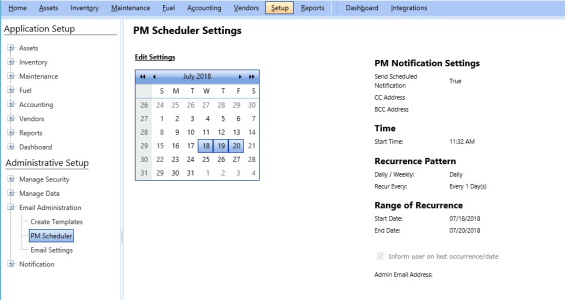
Editing PM Scheduler Settings
The Edit PM Scheduler Settings dialog box lets you modify the PM notification settings, time, recurrence pattern, and the range of recurrence for sending reminder PM emails to your customers.
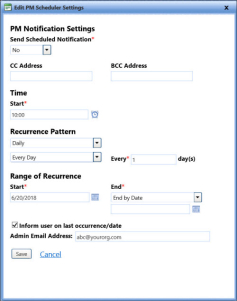
To edit the PM scheduler settings
- Click the Setup module.
- In the Administrative Setup section, do one of the following:
- Click
 next to the Email Administration option, and then click PM Scheduler.
 - In the Email Administration section of Administration Setup, click the PM Scheduler link.
The PM Scheduler Settings page opens.
- Click the Edit Settings link.
The Edit PM Scheduler Settings dialog box opens. - In the Send Scheduled Notification list, click Yes, if you want to send the email notification for the PM schedule.
- In the CC Address box, type the email address of the other recipients.
- In the BCC Address box, type the email address of the recipients who are not a part of the PM schedule.
- In the Start box under Time, type the time in the HH:MM AM/PM format, or select a time from the time picker to send the PM reminder emails.
- In the Recurrence Pattern list, set the frequency of sending emails to Daily or Weekly.
- For Daily recurrence, do the following:
- Select Every day ( to send PM emails on any day of the week) or Every Week Day (to send PM emails only on five days from Monday to Friday).
- In the Every <number of days> day(s) box, type the number of days after which you want the next email to be sent.
For example, if an email is sent on November 1, 2018, and the number of days is 5, the next email is sent on November 6, 2018.
- For Weekly recurrence, do the following:
- In the Recur Every <number of weeks> Week(s) on box, type the number of weeks after which you want the next mail to be sent.
For example, if an email is sent in the first week of November and the number of weeks specified is five, the next email is sent in the first week of December. - Select the check boxes for one or more days of the week on which you want the email to be sent.
- In the Recur Every <number of weeks> Week(s) on box, type the number of weeks after which you want the next mail to be sent.
- In the Range of Reference section, do the following:
- In the Start box, type the date in MM/DD/YYYY format or select a date from the date picker to start sending PM reminder emails.
- In the End list, select End by Date or End after X Occurrence, and then specify the end date or number of occurrences after which you want to stop sending PM emails.
- Select the Inform user on last occurrence/date check box to inform the user what the last occurrence/date for PM is.
- In the Admin Email Address box, type the email address of the administrator to send a copy of the PM email.
- When finished, click one of the following:
- Save to save the information and close the dialog box.
- Cancel to disregard any changes and close the dialog box.
After you save the settings, all the details are displayed under the PM Notifications Settings section on the PM Scheduler page.