Managing Values in Fuel Picklist
Picklist values are the list of options in a drop-down list. The Fuel Fields page lets you view and manage the values of the picklist fields in the Fuel module of FASTER Web.
Managing the values of the picklist fields include the following:
|
Note: The steps to view and manage the values of a picklist field are the same for all the picklist fields. The Fuel Type field is taken as an example. |
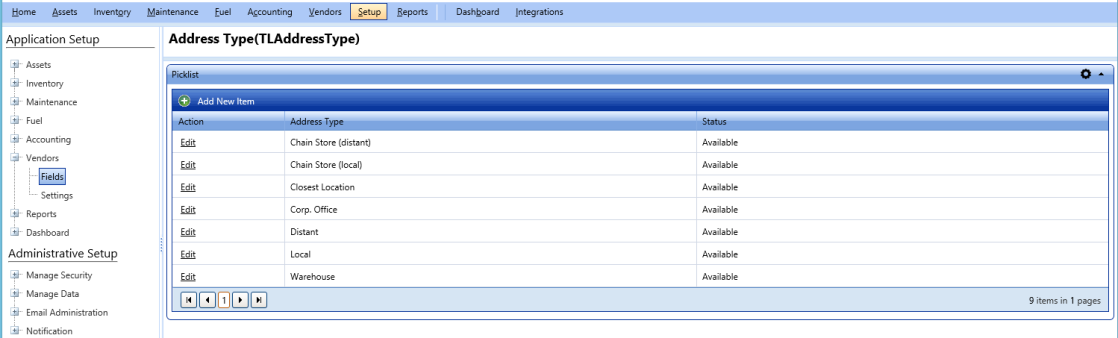
Picklist page
Adding Picklist Value
The Add Picklist Value dialog box lets you add values to the picklist fields of the Fuel module.
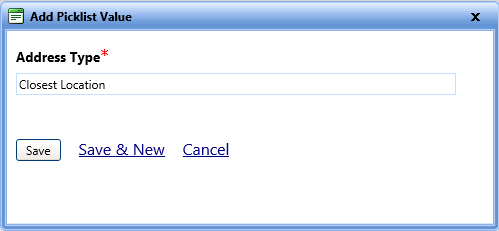
Add picklist value
To add values to the fuel type picklist field
- Open the Fuel Fields page.
- Click the View link next to the Fuel Type picklist field.
The Fuel Type picklist page opens. - Click Add New Item.
The Add Picklist Value dialog box opens. - In the Fuel box, type a fuel name.
- In the Fuel Description box, type a brief description about the fuel type.
- In the Carbon Output box, type the carbon output value.
- Click one of the following:
- Save to save the information and close the dialog box.
- Save & New to save the information and add another record.
- Cancel to disregard any changes and close the dialog box.
Editing Picklist Value
The Edit Picklist Value dialog box lets you modify the existing picklist value, make the value obsolete, or permanently delete the existing value from FASTER Web.
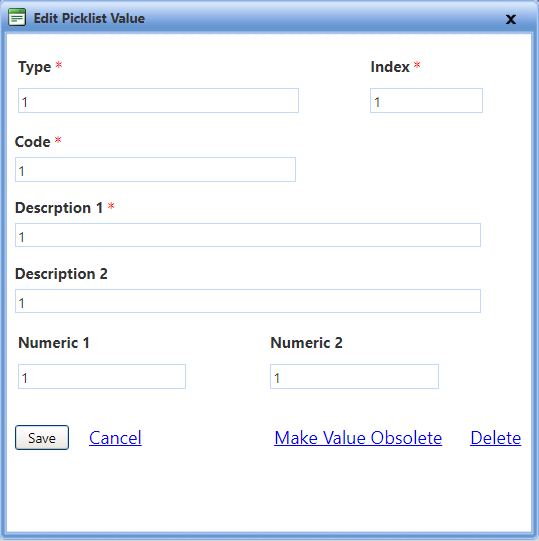
Edit picklist value
To edit values of the fuel type picklist field
- Open the Fuel Fields page.
- Click the View link next to the Fuel Type picklist field.
The Fuel Type picklist page opens. - Click the Edit link next to a value that you want to edit.
The Edit Picklist Value dialog box opens. - Make the changes as required.
- Click one of the following
- Save to save the information and close the dialog box.
- Cancel to disregard any changes and close the dialog box.
- Make Value Obsolete to hide the picklist value from the Fuel Type list.
- Delete to permanently delete the picklist value from the Fuel Type list.
Making Fuel Picklist Value Obsolete
The Obsolete Picklist Value dialog box lets you hide a picklist value from the list so that it is not used in future transactions.
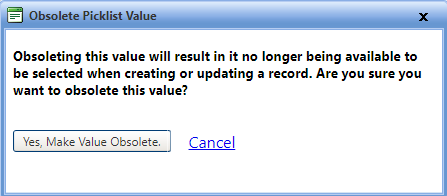
Obsolete picklist value
To make a value of the fuel type picklist field obsolete
- Open the Fuel Fields page.
- Click the View link next to the Fuel Type picklist field.
The Fuel Type picklist page opens. - Click the Edit link next to a value that you want to edit.
The Edit Picklist Value dialog box opens. - Click the Make Value Obsolete link.
The Obsolete Picklist Value dialog box opens. - Click one of the following:
- Yes, Make Value Obsolete to make the value obsolete.
- Cancel to disregard changes and close the dialog box.
|
Note: After you make a picklist value obsolete, the Edit Picklist Value dialog box displays the Make Value Available link. You can also make the pick list value available in the Fuel Type list, as required. To make the pick list value available, click the Make Value Available link, and then click Yes, Make Value Available. |
Deleting Fuel Picklist Value
The Delete Picklist Value dialog box lets you permanently delete a picklist value from a picklist field.
|
Note: You can permanently delete a picklist value only if it is not previously used in FASTER Web transactions. Optionally, you can hide it from future transactions by making the picklist value obsolete. |
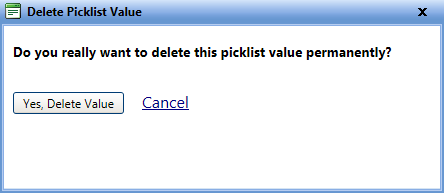
Delete picklist value
To delete a value permanently from the fuel type picklist
- Open the Fuel Fields page.
- Click the View link next to the Fuel Type picklist field.
The Fuel Type picklist page opens. - Click the Edit link next to the value that you want to delete.
The Edit Picklist Value dialog box opens. - Click the Delete link.
The Delete Picklist Value dialog box opens. - Click one of the following:
- Yes, Delete Value to permanently delete the value from the Fuel Type list.
- Cancel to disregard changes and close the dialog box.