History Settings
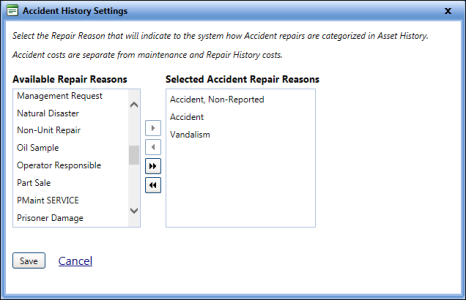
The History Settings section lets you categorise the repair reasons as accident, maintenance, capitalization or warranty repairs. Based on the selected repair reasons for each repair category, the repair cost is displayed in the History tab of the Assets module.
|
Note: The steps for selecting repair reasons are the same for all the history settings. The Accident History Settings is taken as an example. |
To edit the accident history settings
- Click the Setup module.
- In the Application Setup section, do one of the following:
- Click
 next to the Maintenance option, and then click Settings.
 - In the Maintenance section of Application Setup, click the Settings link.
The Maintenance Settings page opens.
- Click
- In the History Settings section, click the Edit link next to Accident.
The Accident History Settings dialog box opens. - Use the navigation icons to assign repair reasons to Accident History Settings.
- To add repair reasons, select the repair reason from the Available Repair Reasons section and click
 .
. - To remove repair reasons, select the repair reason from the Selected Accident Repair Reasons section and click
 .
. - To add all the repair reasons to the Selected Accident Repair Reasons section, click
 .
. - To remove all the repair reasons from the Selected Accident Repair Reasons section, click
 .
.
- To add repair reasons, select the repair reason from the Available Repair Reasons section and click
- Click one of the following:
- Save to save the information and close the dialog box.
- Cancel to disregard any changes and close the dialog box.