Maintenance/ TWS Settings
The Maintenance/ TWS Settings section lets you define the following settings for technicians in the Technician Workstation (TWS) portal:
- Spending Authorization: Document refers to a work order or direct charge in FASTER Web. The Spending Authorization setting lets you define whether or not authorization is required when the total cost of the wok order exceeds the threshold amount allocated for the work order. The threshold amount/ maximum fund is configured for the maintenance shop work order from Setup > Application Setup > Maintenance > Fields > Maintenance Shop > Approval Threshold Amount.
- TWS Use PIN Code: Every technician has a PIN code to log into the Technician Workstation (TWS). This setting lets you define whether or not the PIN code validation is required.
To edit the maintenance/tws settings
- Click the Setup module.
- In the Application Setup section, do one of the following:
- Click
 next to the Maintenance option, and then click Settings.
 - In the Maintenance section of Application Setup, click the Settings link.
The Maintenance Settings page opens.
- Click
- In the Maintenance/ TWS Settings section, click Edit Maintenance/ TWS Settings.
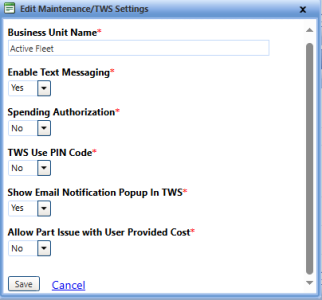
The Edit Maintenance/ TWS Settings dialog box opens. - In the Business Unit Name box, type the name of the business unit.
- In the Enable Text Messaging list, select Yes or No to enable/disable the use of Text Messages for Alert and Service Complete notifications.
- In the Spending Authorization list, select Yes or No.
- Yes to make authorization mandatory when the total cost of a work order exceeds the threshold amount.
- No to accept work orders without authorization when the total cost exceeds the threshold amount.
- In the TWS Use PIN Code list, select Yes or No.
- Yes to make pin code mandatory to log into Technician Workstation (TWS) portal.
- No to allow technician login to Technician Workstation (TWS) portal without a pin code.
- In the Show Email Notification Popup In TWS list, select Yes or No.
- Yes to enable the pop-up to send the email notification in TWS while changing the Work Order Status.
- No to disable the pop-up to send the email notification in TWS while changing the Work Order Status.
- In the Allow Part Issue with User Provided Cost list, select Yes or No.
- Yes to enable the option where user can provide the Unit Price, Unit Tax Cost, and Unit Shipping Cost while issuing a part on Work Order or Direct Charge.
- No to allow the system to fetch existing cost of the Part while issuing it and user will not be able to control the cost from Part Issue.
Note: This functionality is available only for Maintenance > Work order/Direct charge > Part Issue. The functionality of issuing parts at 'Inventory > Process Item Requests > Issue parts' and 'Maintenance > Work order > Parts > Part List' will remain the same.
- When finished click one of the following:
- Save to save the information and close the dialog box.
- Cancel to disregard any changes and close the dialog box.