Searching a Warranty Claim
The Advanced Search Options - Warranty Claims page lets you search the existing warranty claims that were created to recover repair cost.
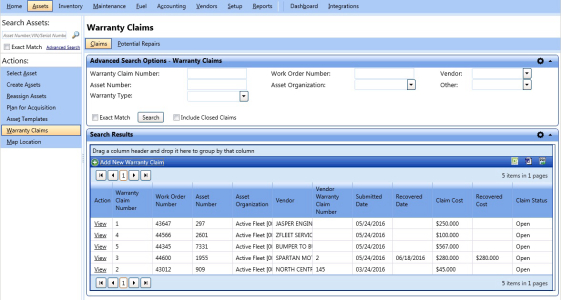
Advanced search options - warranty claims
To search a warranty claim
- Click the Assets module.
- In the Actions section, click Warranty Claims.
The Advanced Search Options - Warranty Claims window opens. - Specify the following search parameters:
- In the Warranty Claim Number box, type the claim number.
- In the Work Order Number box, type the asset work order number.
- In the Vendor list, select the vendor that was selected while adding the warranty.
- In the Asset Number box, type the asset number for which the warranty claim was processed.
- In the Asset Organization list, select the organization of the asset.
- In the Other list, select a parameter based on which you want to perform the advanced search.
- In the Warranty Type list, select the type of the warranty.
- Select the Exact Match check box if you are sure that you have entered the correct text in the Warranty Claim Number, Asset Number, or Work Order Number box.
- Select the Include Closed Claims check box to view the closed and deleted claims.
- Click Search.
The Search Results grid displays the claims along with the following information:- Warranty Claim Number
- Work Order Number
- Asset Number
- Asset Organization
- Vendor
- Vendor Warranty Claim Number
- Submitted Date
- Recovered Date
- Claim Cost
- Recovered Cost
- Claim Status
- In the Action column, click the View link next to a warranty claim that you want to view.
|
Navigation Tips:
|

Exporting the Search Results Grid
You can export the information in a column in the following formats:
- Microsoft Excel (.xls)
- Microsoft Word (.doc)
To export the column information
- In the upper-right corner of the List of Columns grid, click the Microsoft Excel (
 ) or Microsoft Word (
 ).
).
The File Download dialog box opens prompting you to Open, Save, or Cancel. - Click Save.
The Save As dialog box is displayed with the File Type of the selected format. - Browse to the desired location, specify a file name, and then click Save.
The List of Columns grid is saved in the specified format at the specified location.