Editing Roles
The Role page lets you edit the role name, role description and the module permissions assigned for the role.
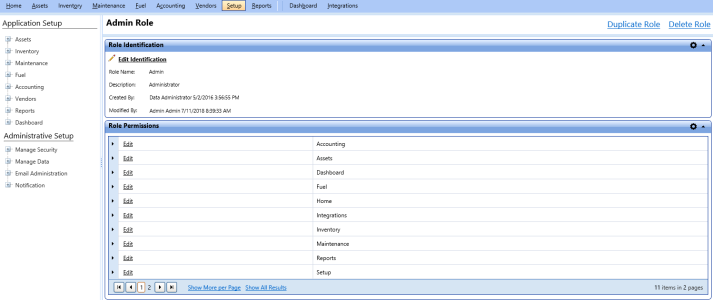
Editing Role Identification
The Edit Role Identification dialog box lets you update the role name and role description.
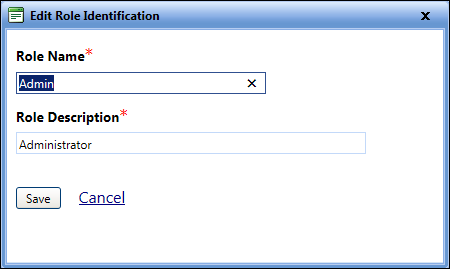
To edit the role identification
- Open the Manage Roles page.
- Click the View link next to the role name that you want to edit.
The Role page of the selected role name opens. - In the Role Identification section, click the Edit Identification link.
The Edit Role Identification dialog box opens. - Make changes in the following fields as required:
- In the Role Name box, type a role name.
- In the Role Description box, type a role description.
- Click one of the following:
- Save to save the information and close the dialog box.
- Cancel to disregard any changes and close the dialog box.
Editing Role Permission
The Edit Permissions dialog box lets you update the module permissions assigned to the role.
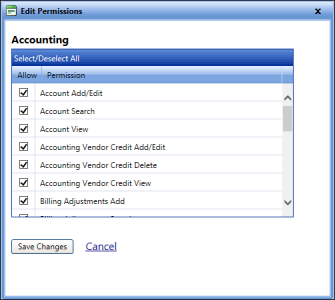
To edit permissions for roles
- Open the Manage Roles page.
- Click the View link next to the role name that you want to edit.
The Role page of the selected role name opens. - In the Role Permissions section, click the Edit link next to the required module name.
The Edit Permissions dialog box displays the list of permissions for the selected module. - Select or clear the check box next to each permission, as required.
- Click one of the following:
- Save Changes to save the changes and close the dialog box.
- Cancel to disregard any changes and close the dialog box.