Resetting Password
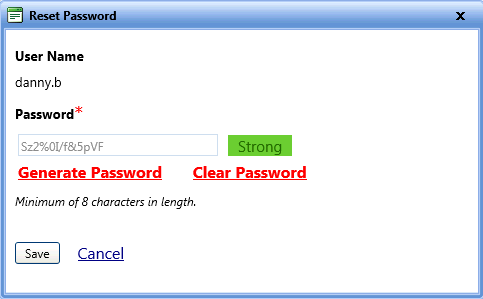
From the Reset Password dialog box, you can change the password of a user.
To reset a password
- Open the Manage Users page.
- Click the View link next to the username.
The User Account page opens. - Click the Reset Password link.
The Reset Password dialog box opens. - In the Password box, do one of the following:
- Type the password.
Note: A strong password must have a minimum of eight characters and must include at least one uppercase letter, one lowercase letter, a number, and a special character such as @, #, $.
- Click the Generate Password link.
- A system generated password gets populated in the Password box.
Note: To remove the contents in the Password box, click the Clear Password link.
- Type the password.
- Click one of the following:
- Save to save the information and close the dialog box.
- Cancel to disregard any changes and close the dialog box.
Note: If Authentication Provider is enabled, this section is not available for Authentication Provider user. This section is available only for non-Authentication Provider users.