User Identification
The User Identification section of the User Account page consists of the user's personal information such as user name, user status and person's name. From the User Identification section, you can update the user's identification details.
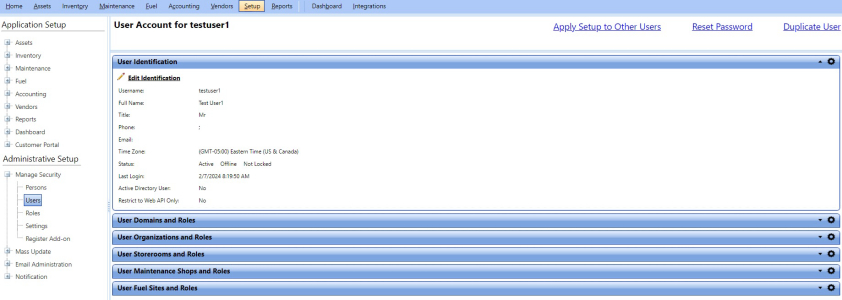
Editing User Identification
From the Edit Identification dialog box, you can update the personal information of the user such as user name, user status and person's name.
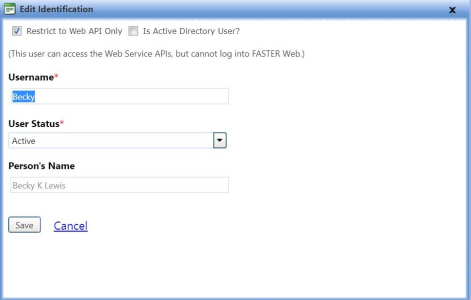
To edit the user identification
- Open the Manage Users page.
- Click the View link next to the person's name that you want to edit.
The User Account page opens. - In the User Identification section, click the Edit Identification link.
The Edit Identification dialog box opens. - In the Username box, type the user name.
- In the User Status list, select Active or Disabled.
- Active to keep the user account active in FASTER Web.
- Select Disabled to disable a user account in FASTER Web.
Note: Once you disable a user account, the user will not be able to access FASTER Web. To enable the user to access FASTER Web, change the user status to Active, as required.
- In the Person's Name box, type the person's name.
Note:
- If the authentication mode is configured as Mixed Authentication, the Is Active Directory User? check box is displayed. You can switch a FASTER Web user to Active Directory user and vice versa as applicable. For more information see:
- Switching a FASTER Web User to Active Directory User
- Switching an Active Directory User to FASTER Web User
- To assign a FASTER Web user or an active directory user as a Web API User, select the Restrict to Web API Only check box. A Web API User cannot log on to the FASTER Web application but can access the Web Service APIs. The Web API User can also access the FASTER Web API documentation using the FASTER Web API documentation URL.
- If the authentication mode is configured as Mixed Authentication, the Is Active Directory User? check box is displayed. You can switch a FASTER Web user to Active Directory user and vice versa as applicable. For more information see:
- When finished, click one of the following:
- Save to save the information and close the dialog box.
- Cancel to disregard any changes and close the dialog box.
Note: If the Authentication Provider is enabled:
- All users in FASTER Web will use the Authentication Provider, except Web API users. In a future update, the FASTER Web APIs will move to a new authentication approach for Web APIs that will also use the Authentication Provider.
- Any person associated with an Authentication Provider User will be required to have a unique email address..
- If a user is restricted to use only Web APIs (Restrict to Web API is checked), the email address is not required for the user.
Switching a FASTER Web User to Active Directory User
To switch a FASTER Web User to Active Directory User
- Open the Manage Users page.
- Click the View link next to the person's name that you want to edit.
The User Account page opens. - In the User Identification section, click the Edit Identification link.
The Edit Identification dialog box opens. - Select the Is Active Directory User? check box.
The Edit Identification dialog box opens. - Click Yes, Switch User.
- In the Username box, type the username of the active directory user in the domain\username format.
- Click the Verify User link to verify the following:
- A user with this username exists in FASTER Web. You must provide a different username if the username exits in FASTER Web.
- A user with this username exists in the active directory. The active directory user must be a member of the active directory user group specified in the Authentication Settings and must have a First Name and Last Name.
- A user with this username does not exists in the active directory, you must specify a valid active directory username.
- If the user is present in the active directory, one of the following occurs:
- If the First Name and the Last Name of the FASTER Web person that was associated with FASTER Web user matches with the First Name and the Last Name of the active directory user, the First Name and the Last Name is displayed in the Person's Name box. The FASTER Web user and its associated FASTER Web person is switched to active directory user and associated active directory person.
- If the First Name and/or the Last Name of the FASTER Web person that was associated with FASTER Web user does not match with the First Name and/or the Last Name of the active directory user, you can:
- Continue without Update - This switches the FASTER Web user and its associated FASTER Web person to active directory user and associated active directory person without updating the FASTER Web person details as per the active directory person details.
- Continue and update - This switches the FASTER Web user and its associated FASTER Web person to active directory user and associated active directory person along with updating the FASTER Web person details as per the active directory person details.
- Cancel - This cancels switching the FASTER Web user to active directory user.
Switching an Active Directory User to FASTER Web User
To switch a FASTER Web User to Active Directory User
- Open the Manage Users page.
- Click the View link next to the person's name that you want to edit.
The User Account page opens. - In the User Identification section, click the Edit Identification link.
The Edit Identification dialog box opens. - Select the Is Active Directory User? check box.
The Edit Identification dialog box opens. - Click Yes, Switch User.
- In the Password box, type the password of the FASTER Web user.
Tip: Use the Generate Password link to create a random, secure password.
Note: The active directory person associated with active directory user is switched to FASTER Web person.
- Click one of the following:
- Save to save the information and close the dialog box.
- Cancel to disregard any changes and close the dialog box.
Editing User Identification when Authentication Provider is enabled
From the Edit Identification dialog box, you can update the personal information of the user such as user name, user status and person's name.
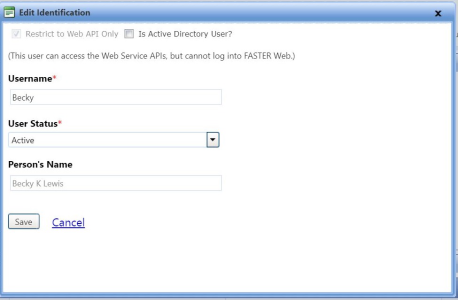
To edit the user record
- Open the Manage Users page.
- Click the View link next to the person's name that you want to edit.
The User Account page opens. - In the User Identification section, click the Edit Identification link.
The Edit Identification dialog box opens. - In the Username box, type the user name.
- In the User Status list, select Active or Disabled.
- Select Active to keep the user account active in FASTER Web.
- Select Disabled to disable a user account in FASTER Web.
Note: Once you disable a user account, the user will not be able to access FASTER Web. To enable the user to access FASTER Web, change the user status to Active, as required.
- In the Person's Name box, type the name of the person.
Note:
- When a user is an Authentication Provider user, the Restrict to Web API Only check box will not be displayed.
- When a user is a Web API user, the Restrict to Web API Only check box will be displayed but will be checked and disabled.
- When Restrict to Web API Only check box is not selected, the user must have an unique email address. A process will be initiated to determine if the user should be managed by Authentication Provider or Enterprise Connection. If the user is not an Enterprise Connection user, a new user will be created in the Authentication Provider and an invitation will be sent over email.
- Click one of the following:
- Save to save the information and close the dialog box.
- Cancel to disregard any changes and close the dialog box.
Note: If the Authentication Provider is enabled:
- All users in FASTER Web will use the Authentication Provider, except Web API users. In a future update, the FASTER Web APIs will move to a new authentication approach for Web APIs that will also use the Authentication Provider.
- Any person associated with an Authentication Provider User will be required to have a unique email address..
- If a user is restricted to use only Web APIs (Restrict to Web API is checked), the email address is not required for the user.