Viewing Asset Module Fields
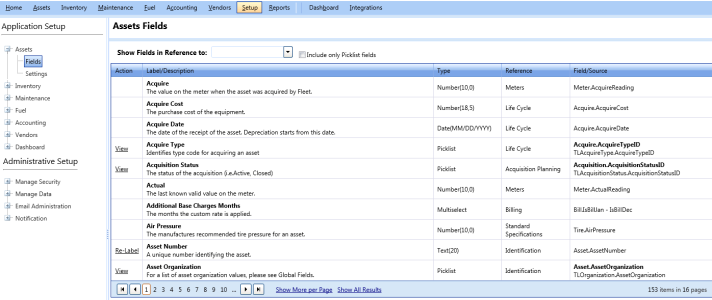
The Assets Fields page displays the list of fields in the Asset module of FASTER Web.
To view the fields of the asset module
- Click the Setup module.
- In the Application Setup section, do one of the following:
- Click
 next to the Assets option, and then click Fields.
 - In the Assets section of Application Setup, click the Fields link.
The Assets Fields page opens.
The Assets Fields grid displays the following columns:Note:
To narrow the list of fields, perform the following:
- In the Show Fields in Reference to list, select an option.
The fields related to the selected option are displayed. - Select the Include only Picklist fields check box.
The fields with drop-down options are displayed.
If you do not select the Include only Picklist fields check box, all the field types such as, picklist, text box, datetime field, and static picklist fields are displayed.
- Action: Provides link to view or re-label the field.
- Label/ Description: Displays the name of the field and its description.
- Type: Displays the field types such as picklist, text box, and datetime.
- Reference: Provides reference to items such as attachments, billing, and meters.
- Field/ Source: Provides information about the location of the field in the FASTER Web database.
- In the Show Fields in Reference to list, select an option.
- In the Action column, do one of the following:
- Click the View link next to a field name to view and manage the picklist values.
- Click the Re-Label link next to a field name to change the current field name.