Global Fuel Import Settings
The Global Fuel Import Settings section lets you manage the global time zone to record fuel transactions, settings to insert invalid reading during fuel import, and to set the Threshold value to purge the rejected records automatically.
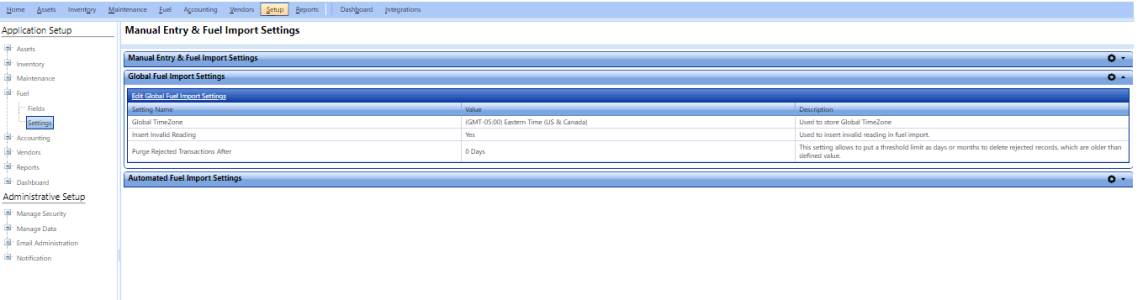
Global fuel import settings page
Editing Global Fuel Import Settings
The Edit Global Fuel Import Settings dialog box lets you modify the settings of global time zone and invalid reading for fuel import; and to set the Threshold value to purge the rejected records automatically..
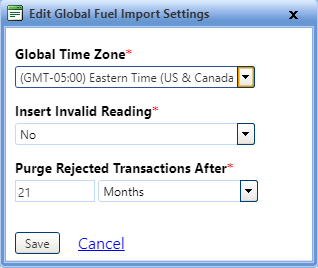
To edit global fuel import settings
- Click the Setup module.
- In the Application Setup section, do one of the following:
- Click
 next to the Fuel option, and then click Settings.
 - In the Fuel section of Application Setup, click the Settings link.
The Manual Entry & Fuel Import Settings page opens.
- In the Global Fuel Import Settings section, click the Edit Global Fuel Import Settings link.
The Edit Global Fuel Import Settings dialog box opens. - In the Global Time Zone list, select a time zone to record fuel import time in FASTER Web.
- In the Insert Invalid Reading list, select Yes or No.
- Yes to import all fuel transaction records in FASTER Web without validating the meter configurations.
- No to validate fuel transaction records against the meter configurations set in Import Layout and Import Validation, and import only valid records in FASTER Web.
- In the Purge Rejected Transactions After field, set the threshold value in either days or months to delete the rejected records.
Note: The Threshold value must be older than the defined value.
- When finished, click one of the following:
- Save to save the information and close the dialog box.
- Cancel to disregard any changes and close the dialog box.