Installation of Datamax Printer Drivers
The Datamax printer drivers are required to print barcodes. Perform the following steps to install the datamax printer drivers.
- Open the Datamax printer driver setup folder.
- Right-click the Launch.exe file and click Run As Administrator.
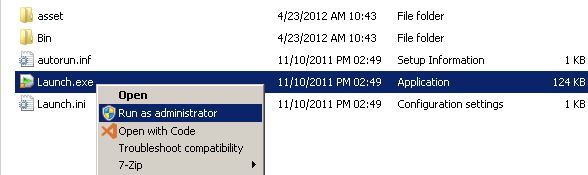
The Datamax Accessories CD-Rom screen is displayed.
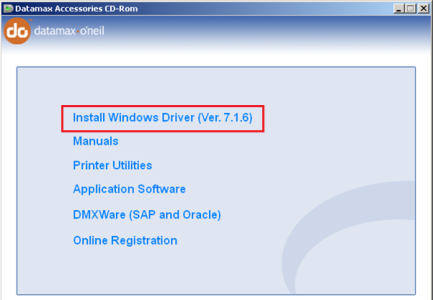
- Click Install Windows Driver (Ver.7.1.6).
The Open File - Security Warning window opens.
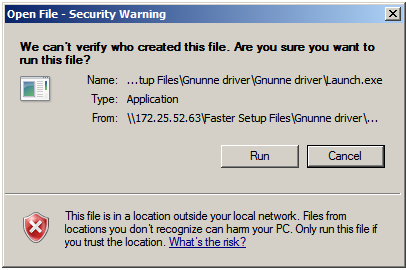
- Click Run to start the installation process.
The Windows Printer Drivers screen is displayed.
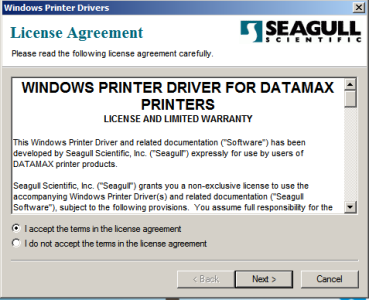
- Click I accept the terms in the license agreement, and then click Next.
The Installation Directory screen is displayed.
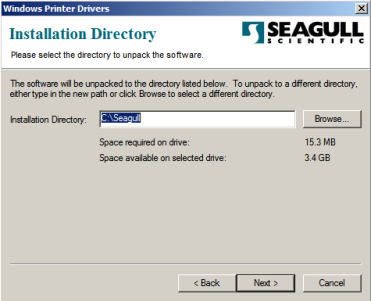
- In the Installation Directory box, type the path or click Browse to select a folder to install the driver.
- Click Next.
The Installation Information screen is displayed.
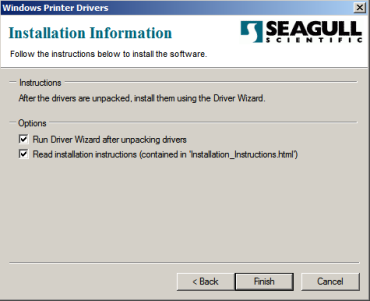
- Check if both the options are selected, and then click Finish.
The Welcome to the Seagull Driver Wizard screen is displayed to install the printer drivers.
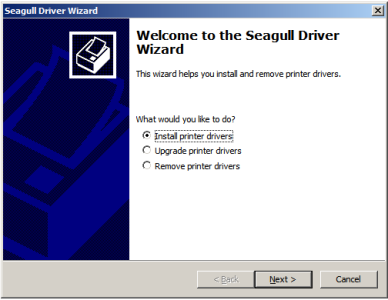
- Click Install printer drivers, and then click Next.
The Specify Printer Model screen is displayed.
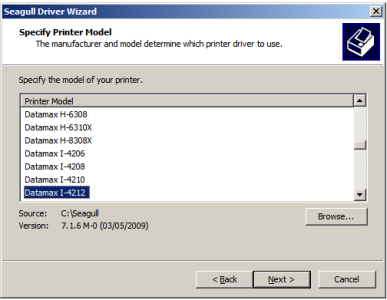
- In the Printer Model list, click Datamax I-4212 and then click Next.
The Specify Port screen is displayed.
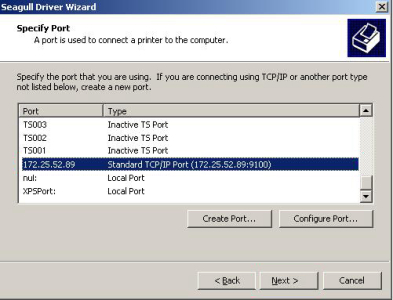
- From the available port types, select a port, and then click Next.
Or
If your port type is not listed, click Create Port… to create a new TCP/IP Port.
The Create Port window opens.
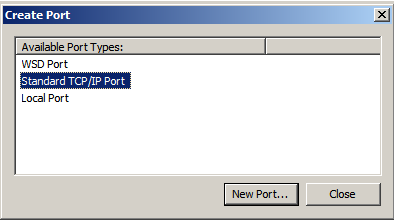
- Click a port type and then click New Port…
The Welcome to the Add Standard TCP/IP Printer Port Wizard screen is displayed.
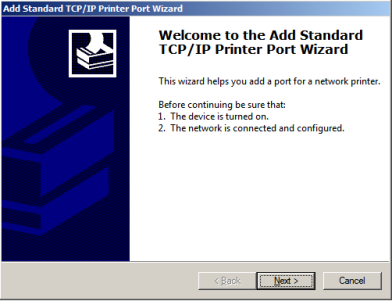
- Click Next.
The Add port screen is displayed.
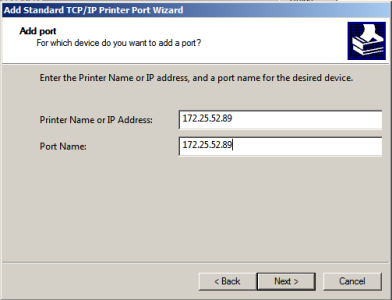
- In the Printer Name or IP Address box, type the printer name or IP address.
- In the Port Name box, type the port name.
- Click Next.
The Additional port information required screen is displayed.
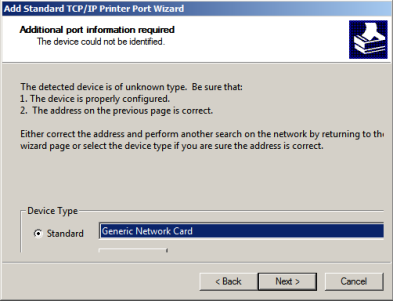
- In the Device Type list, select Generic Network Card.
The Completing the Add Standard TCP/IP Printer Port Wizard screen is displayed.
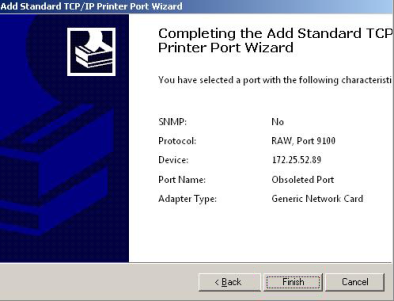
- Click Finish to complete the port creation.
The Create Port window opens. - Click Close.
- In the Specify Port screen, select the newly created port, and then click Next.
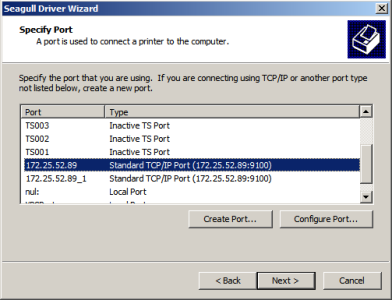
The Specify Printer Name screen is displayed.
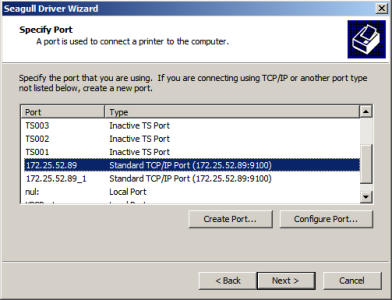
- Click a port type and then click New Port…
- In the Printer name box, type the name of the printer, and then click Next.
The Completing the Seagull Driver Wizard screen is displayed.
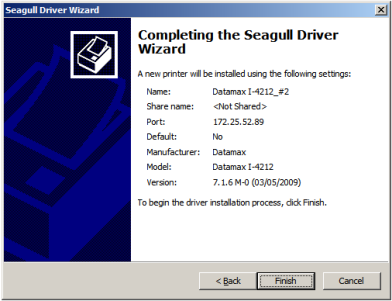
- Click Finish to begin the driver installation process.
The Seagull Driver Wizard Completed Successfully screen is displayed. - Click Close.
The Selected Field(s) box displays all the barcode fields that are selected by default.Note:
- FASTER Web supports barcode label sizes 4 X1 and 4 X 2.
- To exclude specific barcode fields, select the field from Selected Field(s) box and move it to the Barcode Field(s) box using the arrow keys.
- To select more than one option from the Selected Field(s) section, press Ctrl + click the option.
- Only the fields that are available in the Selected Field(s) box appear in the barcode.
- For the barcode label size 4 X 1, you cannot edit the barcode fields because the fields and the field layout are fixed for 4 X 1 label size. You can select barcode fields and field layout for barcode label size 4 X 2.
- You can preview the barcode with selected combinations on the right-side of the Edit Barcode Settings dialog box.