Editing Barcode Settings
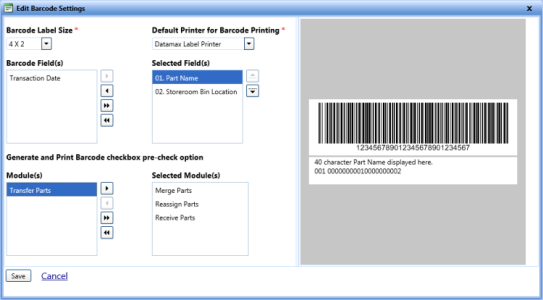
The Edit Barcode Settings dialog box lets you update the barcode settings such as barcode label size and default printer for barcode printing.
To view and edit barcode settings
- Click the Setup module.
- In the Application Setup section, do one of the following:
- Click
 next to the Inventory option, and then click Settings.
 - In the Inventory section of Application Setup, click the Settings link.
The Inventory Settings page opens.
- Click the View link next to Edit Barcode Setting.
The Barcode Settings page opens. - Click the Edit Barcode Settings link.
The Edit Barcode Settings dialog box opens. - Make changes in the following fields as required:
- In the Barcode Label Size list, select the label size of the barcode.
- In the Default Printer for Barcode Printing list, select the printer option.
Note: If you have selected the Datamax Label Printer option, you must install the Datamax Label Printer to print barcodes. Click Installation of Datamax Printer Drivers to follow the installation steps.
- When finished, click one of the following:
- Save to save the information and close the dialog box.
- Cancel to disregard any changes and close the dialog box.